Docs
Bulk item import
Add a whole catalog at once from a spreadsheet — download the template, fill it in, preview, and import.
When you have dozens or hundreds of items, entering them one at a time is slow. Bulk import lets you build the whole catalog in a spreadsheet and load it in one pass — with a preview that catches mistakes before anything is saved.
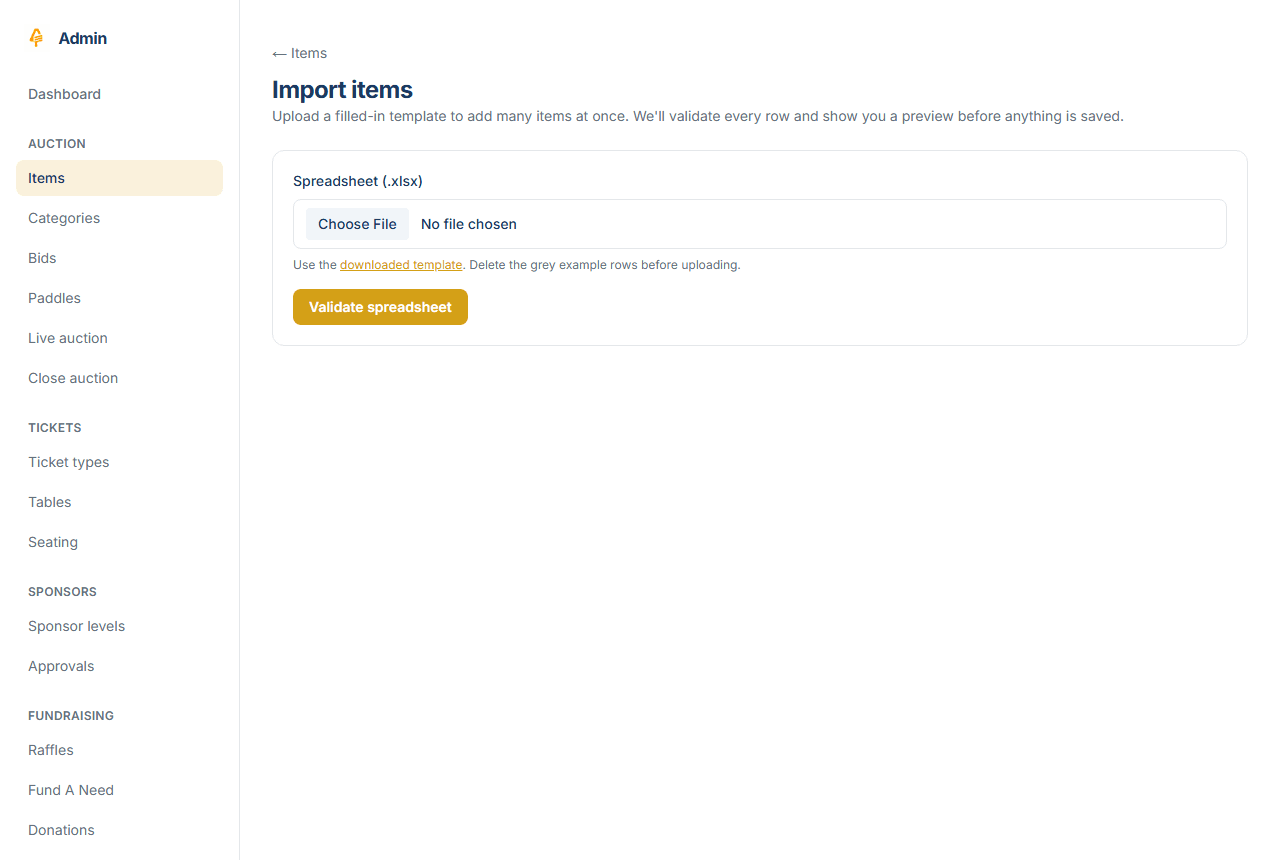
1. Download the template
From Items → Import items, download the Excel template. It's not a blank sheet — it comes with the right columns, two worked example rows, an Instructions tab explaining every field, and drop-downs for the choices that have a fixed set of values (auction type, donor-visible, and your event's categories). The category drop-down is filled from the categories you've created, so set those up first under Items → Categories if you want to use them.
2. Fill it in
One row per item. A few rules the template enforces:
- Name and Auction type are always required.
- Silent and live items need a Starting bid; multi-purchase items need a Fixed price instead.
- Money is in dollars —
250or12.50, no currency symbol needed. - Category must match one of your existing category names exactly (use the drop-down).
-
Image URLs are optional — paste up to five public image links per
item, separated by a pipe (
|). We fetch and host them for you on import.
Delete the two grey example rows before you upload — they're there to show the shape, not to import.
3. Upload and preview
Back on the import page, choose your filled-in file and click Validate spreadsheet. Nothing is saved yet — you get a preview table showing every row with its resolved price, category, and image count, plus a running count of how many are ready versus how many have problems. Each problem row lists exactly what's wrong (a missing price, an unknown category, a malformed image link) so you can fix the sheet and re-upload.
4. Import
When the preview looks right, click Import. Only the error-free rows are created — any rows still showing an error are skipped, so a few bad rows never block the good ones. You'll get a summary of how many items were created, a list of any rows that failed, and a note about any images that couldn't be fetched. Images are best-effort: an item is still created even if one of its image links was unreachable, and you can add the picture later by editing the item.
After importing
Imported items behave exactly like ones you create by hand — edit them, group them with categories, and print bid tags from Items → QR codes, which generates a scannable code per item that opens its bid page. Re-running an import adds more items; it doesn't replace what's already there.
Related: Silent auction and Admin console.
Last updated Sat Jun 13 2026 00:00:00 GMT+0000 (Coordinated Universal Time) · Edit this page